AMB82 mini was purchased one year before, but now trying to upload new code to the board using Arduino IDE, it shows uploaded, but on resetting the device, the old program the flashed in the board, that only runs. Please let me know how to resolve this issue, thank you.
Hi @Gopinath,
Could you provide the compilation logs for our reference?
Kindly note that you need to enter download mode before uploading the code to the board. You should see this when you enter download mode.

You may refer to the Getting Started.
Thank you.
Hi Pammy,
please find the log as below
Enter Flash Mode!
Start Upload Flash
Uploading.ERROR: GetDefaultCommConfig()uart COM3 open fail
NOR flashloader loading fail
nop fail
ERROR: GetDefaultCommConfig()uart COM3 open fail
nop fail
ERROR: GetDefaultCommConfig()uart COM3 open fail
nop fail
End Upload Flash
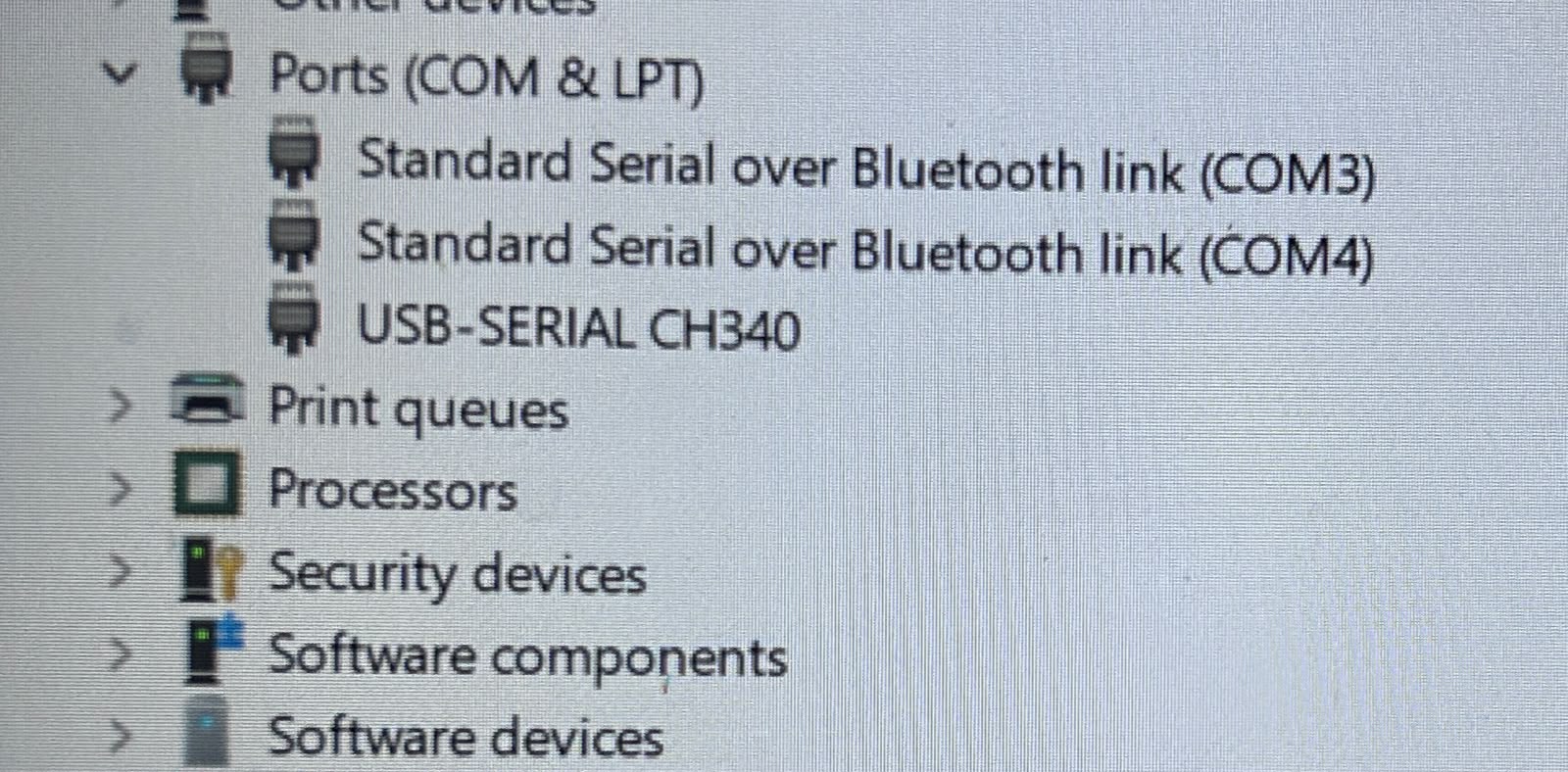
Hi @Gopinath ,
The error uart COM3 open fail happens because the Arduino IDE is trying to send the code to COM3, which your Device Manager shows is a Bluetooth link, not your AMB82 Mini board.
The root cause is that your USB-SERIAL CH340 device (which is the AMB82 Mini) does not have a (COMx) port number assigned to it. This indicates a USB driver issue on your Windows machine.
Here is how to resolve this:
Uninstall and Reinstall the CH340 Driver
Since Windows detects the name but hasn’t assigned a COM port, the driver is likely corrupted or missing components.
- Open Device Manager.
- Right-click on USB-SERIAL CH340 and select Uninstall device.
- Important: If a checkbox appears saying “Attempt to remove the driver for this device”, check it, then click Uninstall.
- Unplug your AMB82 Mini from the USB port.
- Plug it back in. Windows should attempt to reinstall the driver automatically.
Manually Download the CH340 Driver (if the above fails)
If reconnecting the board still results in “USB-SERIAL CH340” without a COM port number:
- Open your web browser and search for “WCH CH340 driver” (WCH is the manufacturer of the chip).
- Download the official Windows driver installer (usually named
CH341SER.EXEor similar). - Run the installer and click Install.
- Restart your computer and check Device Manager again. You should now see something like USB-SERIAL CH340 (COM5).
Select the Correct Port in Arduino IDE
Once Device Manager successfully assigns a COM port number to the CH340:
- Open Arduino IDE.
- Go to Tools > Port.
- Select the new COM port that matches your CH340 device (do not select COM3 or COM4).
- Attempt your upload again.